How to Deploy an MCP Server on Your VPS with 1Panel (One-Click Setup)
A step-by-step guide to deploying a self-hosted MCP server on a VPS using 1Panel's one-click interface — no terminal wrestling required. Learn the architecture, transport modes, security hardening, and how to connect AI clients like Claude and Cursor.
TL;DR
- MCP (Model Context Protocol) is the open standard that lets AI agents connect to databases, APIs, and tools through one unified interface.
- Self-hosting an MCP server on your own VPS keeps sensitive data on your infrastructure, eliminates per-call API costs, and removes vendor lock-in.
- 1Panel is the only open-source VPS control panel with native MCP server management built in — deploy, monitor, and connect MCP servers through a web UI without touching the command line.
- 1Panel automatically bridges STDIO-mode MCP servers to SSE, so any npx-based or binary MCP server becomes remotely accessible without transport changes.
- MCP Server management is available from 1Panel v1.10.29 LTS onwards.
Table of Contents
- What Is an MCP Server?
- Why Self-Host Instead of Using a Managed Service?
- VPS Requirements
- STDIO vs. HTTP/SSE: Which Transport to Use?
- How to Deploy an MCP Server with 1Panel
- Unified Domain and SSE Paths
- Securing Your Self-Hosted MCP Server
- Which AI Clients Connect to a Self-Hosted MCP Server?
- 1Panel vs. Manual Docker Setup
- Frequently Asked Questions
What Is an MCP Server?
Every AI agent hits the same wall eventually. It reasons well across public data, but the moment your workflow needs a private database, an internal tool, or a proprietary API, the agent goes silent — or worse, hallucinates an answer.
Model Context Protocol (MCP) is the open standard that fixes this. Introduced by Anthropic in November 2024 and now backed by OpenAI, Google, and Docker, MCP gives large language models a single, standardized interface to connect to external tools, databases, and services through a JSON-RPC 2.0 bridge. Source: Anthropic
The core architecture has two sides:
- MCP Server — a process that exposes tools, resources, or data sources. Think of it as the adapter that wraps your database, your file system, your GitHub API, or your internal service and speaks MCP.
- MCP Client — the AI agent or host (Claude Desktop, Cursor, Windsurf, VS Code Copilot) that calls the server and gets back structured results.
Every host that speaks MCP can talk to every server that speaks MCP, regardless of the underlying model. That’s the protocol’s core value proposition.
Adoption has been fast. Over 500 public MCP servers exist today, and organizations are increasingly running private ones — inside their own infrastructure — to handle sensitive data, internal tooling, and agentic workflows that can’t go through a third-party service.
Why Self-Host Instead of Using a Managed Service?
Managed MCP platforms exist (Smithery, MintMCP, various cloud providers), and they’re fine for prototyping. For anything that touches real data or requires production uptime, self-hosting makes more sense for three reasons:
1. Data sovereignty. When your MCP server connects to a private database or internal API, that data transits through the server. If the server runs on someone else’s infrastructure, so does your data. Under the EU AI Act — penalty provisions took effect August 2025 — organizations handling personal data in AI pipelines face up to 7% of global annual turnover for the most severe violations. Running your own VPS keeps the data boundary clear. Source: MintMCP
2. Cost. Managed services charge per request or per seat. A $6/month VPS running your own MCP server has zero per-call cost, whether you’re sending 100 or 100,000 requests per day.
3. Control. Shadow IT is already a real problem. Research from Obot AI found organizations with hundreds of developers running MCP servers on their laptops, each with scattered credentials and no audit trails. Centralizing on a VPS you manage gives you logging, access control, and a single point of configuration. Source: Obot AI
VPS Requirements
MCP servers themselves are lightweight. A minimal MCP server process consumes under 100 MB of RAM. Your actual requirements depend on what the server does — if it proxies to a local database or runs inference, those workloads dictate the spec.
| Use Case | Minimum VPS Spec |
|---|---|
| Single MCP server (proxy/API bridge) | 1 vCPU, 1 GB RAM |
| MCP server + local LLM (Ollama, 7B model) | 4 vCPU, 16 GB RAM |
| MCP server + Ollama + vector database | 4 vCPU, 32 GB RAM |
| GPU inference (14B+ models) | GPU VPS, 24 GB+ VRAM |
OS: Ubuntu 22.04 LTS or Debian 12 (both are well-tested with 1Panel).
Ports: You’ll need at least port 443 open for HTTPS, and a dedicated port for your MCP endpoint (commonly 3000 or 8080 behind a reverse proxy).
STDIO vs. HTTP/SSE: Which Transport to Use?
MCP supports two transport mechanisms, and the choice matters more than most tutorials acknowledge.
STDIO (Standard I/O) The server communicates through stdin/stdout. This is the default for local development — the client spawns the server as a child process on the same machine.
- Works on: local machines, the same server
- Does NOT work for: remote connections over the internet
- Security implication: any process on the machine can potentially interact with it
HTTP + SSE (Server-Sent Events) The server runs as a persistent HTTP service. The client connects over the network using a URL endpoint. This is what remote VPS deployments require.
- Works on: remote servers, VPS, cloud instances
- Supports: authentication tokens, HTTPS, reverse proxies
- Security: properly isolated behind a firewall and reverse proxy
The rule: if your MCP server runs on a VPS and your AI client runs on a different machine, you need HTTP/SSE transport. STDIO is for local-only setups.
1Panel solves this automatically. Most MCP servers distributed via npm packages ship in STDIO mode — and STDIO is what most tutorials configure. 1Panel takes those STDIO-mode servers (launched via npx or a binary), wraps them inside a container, and exposes them as an SSE endpoint. You configure the STDIO command; 1Panel handles the STDIO-to-SSE bridge, the port assignment, and the reverse proxy. You get a clean HTTPS URL your AI client can reach from anywhere, without rewriting a single line of the MCP server itself.
A third mode — Streamable HTTP — is emerging in the 2026 MCP spec roadmap as a replacement for SSE, offering better multiplexing. 1Panel’s MCP manager tracks spec updates, so deployed servers can be migrated forward.
How to Deploy an MCP Server with 1Panel
1Panel is an open-source VPS control panel with native MCP server management — the only control panel that treats AI infrastructure as a first-class feature alongside websites, Docker containers, and databases. It ships with a dedicated AI workspace that includes Ollama local LLM management, OpenClaw agent deployment, GPU monitoring, and an MCP Servers Manager.
Here’s the full deployment path.
Step 1: Install 1Panel on Your VPS
SSH into your VPS and run the one-line installer:
bash -c "$(curl -sSL https://resource.1panel.pro/v2/quick_start.sh)"
The installer detects your OS, installs Docker (if not present), and launches the 1Panel web interface. On first boot, it prints your access URL and a one-time admin password.
Visit https://your-vps-ip:PORT to log in.
Already have 1Panel? Skip to Step 2.
Step 2: Open MCP Server Management
In the 1Panel dashboard, navigate to AI → MCP in the left sidebar. This is the central management view for all your MCP server instances — each listed with its status, SSE endpoint URL, and a quick-copy config button.
Click Create MCP Server to add your first server.
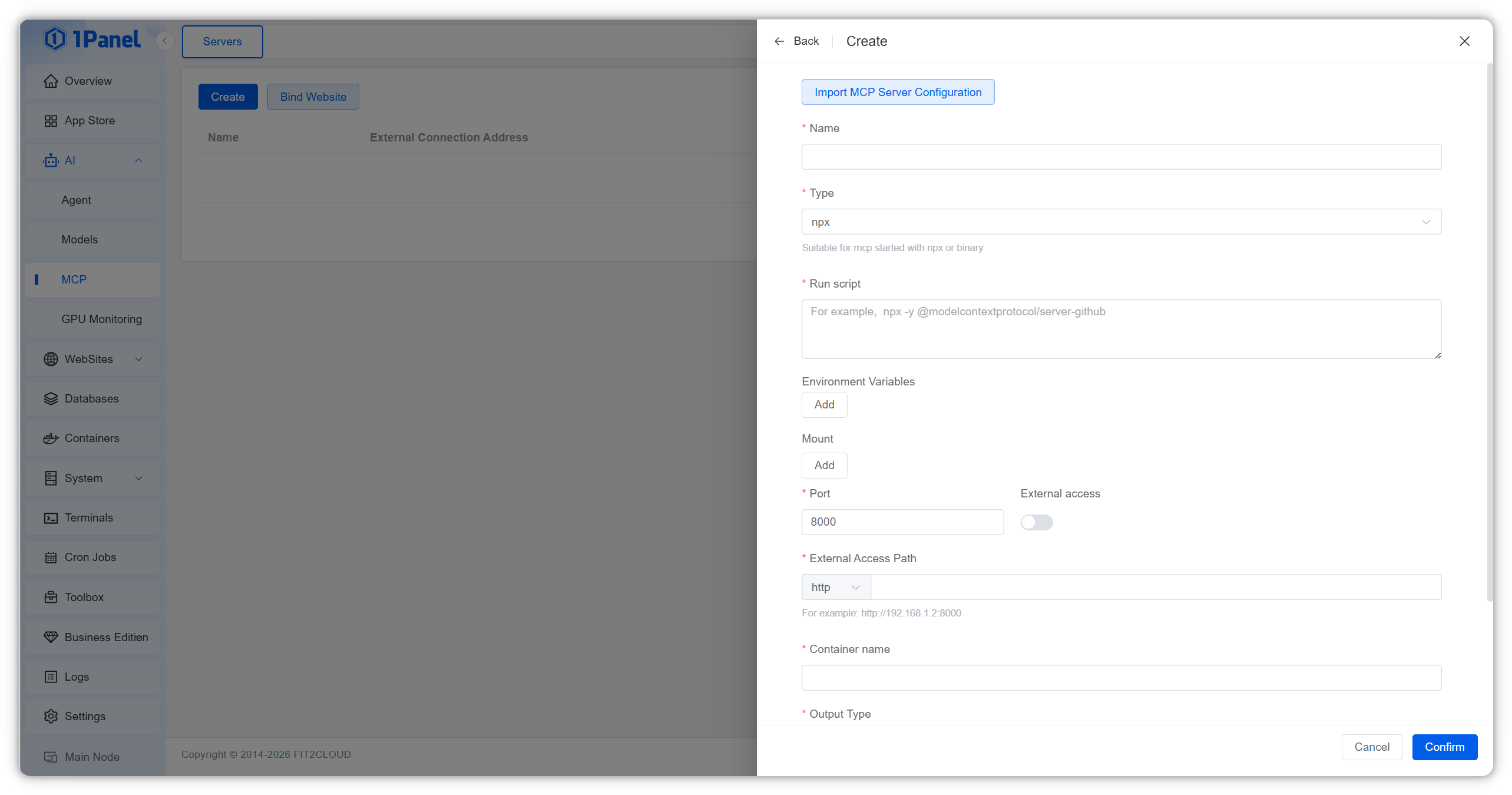
Step 3: Create Your MCP Server
1Panel supports two methods for running MCP servers. Both work by taking a STDIO-mode server and bridging it to SSE — so your AI client gets a stable HTTPS URL, no matter which method you choose.
Method 1 — npx command (recommended for Node.js-based MCP servers)
This is the fastest path for any MCP server distributed as an npm package.
- In the Create dialog, select npx.
- Enter the npx command for your MCP server. For example, to deploy the official filesystem server:
npx -y @modelcontextprotocol/server-filesystem /data - Add any required environment variables (API keys, paths, etc.) in the Env section.
- Click Confirm.
1Panel pulls the Node.js runtime into an isolated container, runs your npx command as a STDIO process, and exposes it as an SSE endpoint. The container starts automatically and restarts on crash.
Method 2 — Binary
For MCP servers distributed as compiled binaries (Go, Rust, Python-compiled, etc.):
- In the Create dialog, select Binary.
- Mount the binary file into the container — 1Panel lets you specify the host path and the container mount path.
- Set the run command and any environment variables.
- Click Confirm.
This method works for any MCP server you’ve built or downloaded as a standalone executable, without requiring a runtime like Node.js.
Step 4: Get the Client Config and Connect
After the server starts, click the Config button next to your new MCP server instance. 1Panel auto-generates the full client configuration including the port, address, and SSE path — no manual lookup required.
Copy the generated JSON and paste it directly into your AI client’s MCP settings.
Claude Desktop (~/Library/Application Support/Claude/claude_desktop_config.json on macOS):
{
  "mcpServers": {
    "my-vps-server": {
      "url": "https://your-vps.example.com/filesystem",
      "transport": "sse"
    }
  }
}
Cursor / Windsurf: Settings → AI → MCP Servers → Add, paste the same endpoint URL.
VS Code with GitHub Copilot: .vscode/mcp.json in your workspace, same structure.
Bonus: Unify Multiple MCP Servers Under One Domain
Most VPS setups run more than one MCP server — filesystem access, a database proxy, a GitHub integration. Opening a separate port for each is messy and increases your attack surface.
1Panel solves this with unified domain binding: multiple MCP server instances share the same website domain, differentiated only by their SSE path. For example:
| Server | SSE Path |
|---|---|
| Filesystem server | /files |
| PostgreSQL proxy | /db |
| GitHub integration | /github |
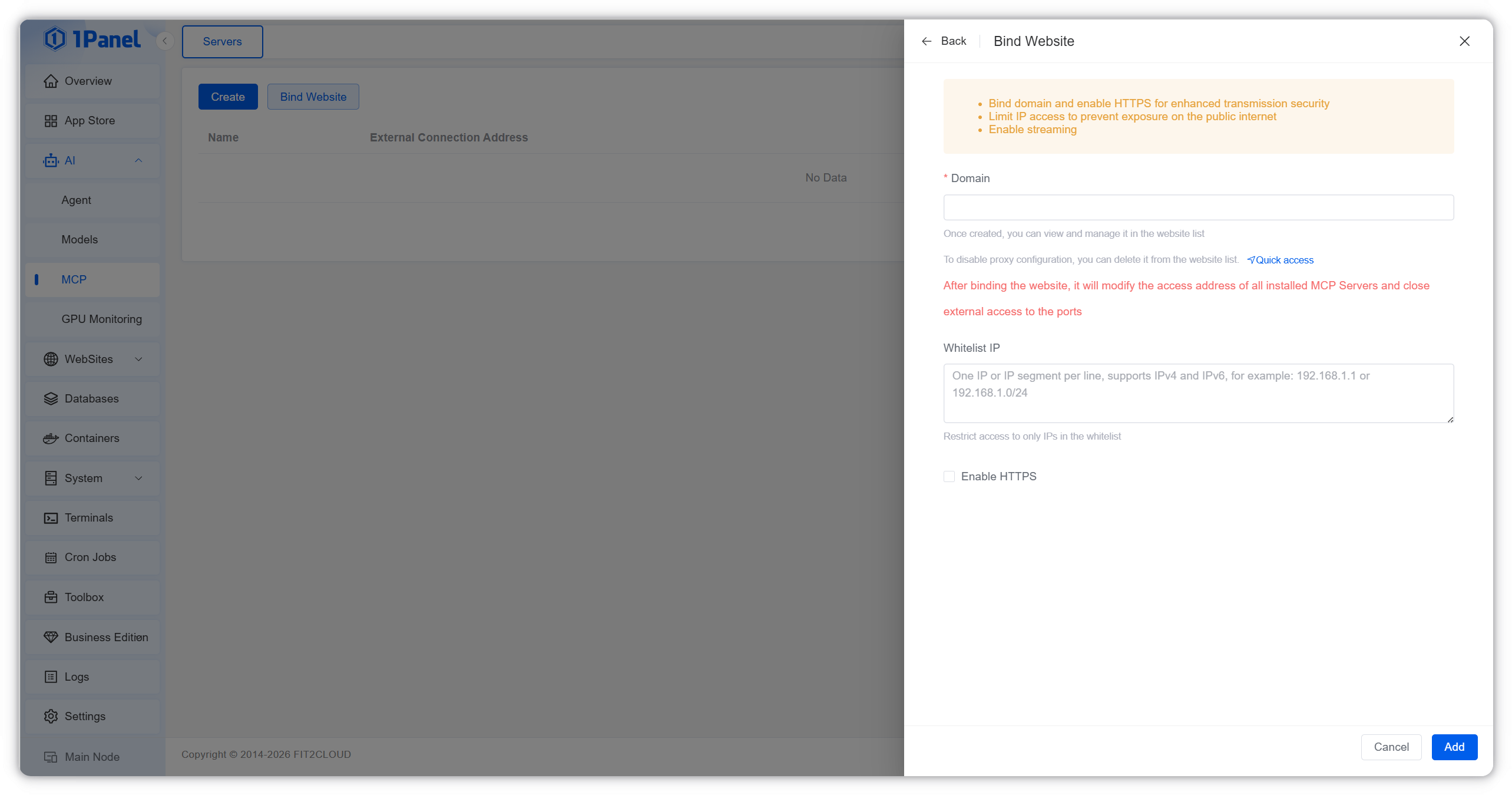
All three are reachable at https://mcp.yourdomain.com — single port 443, single SSL certificate, single firewall rule. Set this up in each MCP server’s website binding settings inside 1Panel.
Securing Your Self-Hosted MCP Server
Security is the part most tutorials skip. Real vulnerabilities have been found in production MCP deployments — including a critical RCE (CVE-2025-49596, CVSS 9.4) in the Anthropic MCP Inspector, SQL injection in Apache Doris MCP, and STDIO command injection vulnerabilities that propagate from unvalidated input. Source: Oligo Security
A self-hosted VPS deployment reduces the attack surface when you configure it properly.
1. Always put the MCP endpoint behind HTTPS
1Panel supports enabling HTTPS on each MCP server’s website binding. Upload your SSL certificate in the website settings to activate encrypted access. This ensures all context data — prompts, tool results, credentials — transits encrypted between your AI client and the VPS. Don’t skip this step.
2. Use authentication tokens
MCP’s HTTP/SSE transport supports bearer token authentication. Set a strong MCP_AUTH_TOKEN environment variable in the container configuration (available in 1Panel’s App Settings), then pass the same token in your client’s connection config:
{
  "url": "https://your-vps.example.com:8080/mcp",
  "transport": "sse",
  "headers": { "Authorization": "Bearer YOUR_SECRET_TOKEN" }
}
3. Configure per-server IP whitelists
1Panel lets you set an IP access whitelist for each MCP server website individually. Navigate to the website settings for your MCP server and add the specific IP addresses or CIDR ranges that are allowed to connect. Any request from an IP not on the list gets denied automatically — this creates a network-level access boundary before the MCP protocol even engages. For team deployments, combine this with 1Panel’s firewall rules under Host → Firewall to enforce deny-by-default at the VPS level as well.
4. Never expose STDIO-mode servers publicly
STDIO servers have no built-in authentication layer. They are for local use only. If an STDIO server’s port is accidentally exposed, it’s essentially an unauthenticated execution endpoint. Treat it the same way you’d treat an unprotected SSH port.
Which AI Clients Connect to a Self-Hosted MCP Server?
Any MCP-compatible client can connect to a self-hosted endpoint. The major ones as of 2026:
| Client | MCP Support | Notes |
|---|---|---|
| Claude Desktop | Full | Best-in-class support, native MCP config |
| Cursor | Full | Via Settings → MCP Servers |
| Windsurf | Full | .windsurfrules or Settings panel |
| VS Code + GitHub Copilot | Full | .vscode/mcp.json |
| Continue.dev | Full | Open-source, self-hosted option |
| Open WebUI | Partial | Via tool server config |
The 2026 MCP spec roadmap includes OAuth 2.0 support and multi-server orchestration, so the client ecosystem is expanding rapidly.
1Panel vs. Manual Docker Setup
Why use 1Panel instead of deploying via docker run or a hand-written docker-compose.yml?
| Task | Manual Docker | 1Panel |
|---|---|---|
| Deploy an npx-based MCP server | Write Dockerfile + compose | Enter npx command in UI |
| Deploy a binary MCP server | Mount + compose manually | Mount binary in UI |
| Bridge STDIO to SSE for remote access | Write proxy adapter or use supergateway | Built-in, automatic |
| Unified domain for multiple servers | Manual Nginx location blocks | Website binding with SSE path |
| Per-server IP whitelist | Nginx allow/deny directives | Web UI whitelist per server |
| SSL certificate | Manual Certbot or upload | Upload certificate in UI |
| View container logs | docker logs <id> | Web UI log viewer |
| Manage multiple MCP servers | Multiple config files | Single MCP Servers dashboard |
| Restart on crash | --restart always flag | Checked by default |
Manual Docker is faster to set up if you know exactly what you’re doing and only have one service to manage. 1Panel wins whenever you’re running multiple services, need to hand the server off to a teammate, or want an audit log of who changed what configuration.
1Panel also ships its own 1Panel MCP Server — a separate implementation that lets AI clients manage the VPS itself through natural language. Ask Claude to check your disk usage, restart a container, or rotate SSL certificates — without ever opening the web UI.
Frequently Asked Questions
Can I run multiple MCP servers on one VPS?
Yes, and 1Panel makes multi-server management practical. Each MCP server is an isolated container, and you can bind all of them to a single domain with different SSE paths — so they all share port 443 instead of requiring individual open ports. 1Panel’s MCP Servers dashboard shows all instances with individual status, logs, and configuration.
Which MCP servers does 1Panel support?
Any MCP server that ships as an npm package (runnable via npx) or as a compiled binary. This covers the vast majority of the MCP ecosystem — the official MCP servers repository, community servers on npm, and any server you’ve built yourself. 1Panel wraps the STDIO process in a container and exposes it as SSE. MCP Server management is available from v1.10.29 LTS.
Is 1Panel free?
1Panel is open-source (GPL-3.0) with a free tier that covers all core features including MCP management. Pro plans start at $80/year and add priority support, advanced monitoring, and team management features. See pricing at 1panel.pro.
Can I deploy Ollama alongside the MCP server?
Yes. 1Panel’s AI workspace manages Ollama and MCP servers in the same dashboard. Deploy an Ollama model first under AI → Local LLMs, then deploy an MCP server that points to it (e.g., an Ollama-backed tool server for OpenClaw). Both share the same Docker network automatically.
Conclusion
Self-hosting an MCP server gives you data control, zero per-call costs, and a clean audit boundary for AI agent infrastructure. The main friction has always been the setup — SSL, reverse proxy, Docker networking, firewall rules — which is exactly what 1Panel eliminates.
With 1Panel’s native MCP Servers Management, you go from a fresh VPS to a running, HTTPS-secured MCP endpoint in under ten minutes, with no command-line configuration required. Add Ollama and OpenClaw from the same dashboard, and you have a complete self-hosted AI agent stack on infrastructure you own.
Ready to get started? Visit 1panel.pro to download 1Panel for free, or check the GitHub repository (35,000+ stars) to explore the source code.